Support Appointment Form
Please fill out the following information so we can provide you with timely phone support.



How to set email alters
Use Gmail as an example:
Gmail settings:
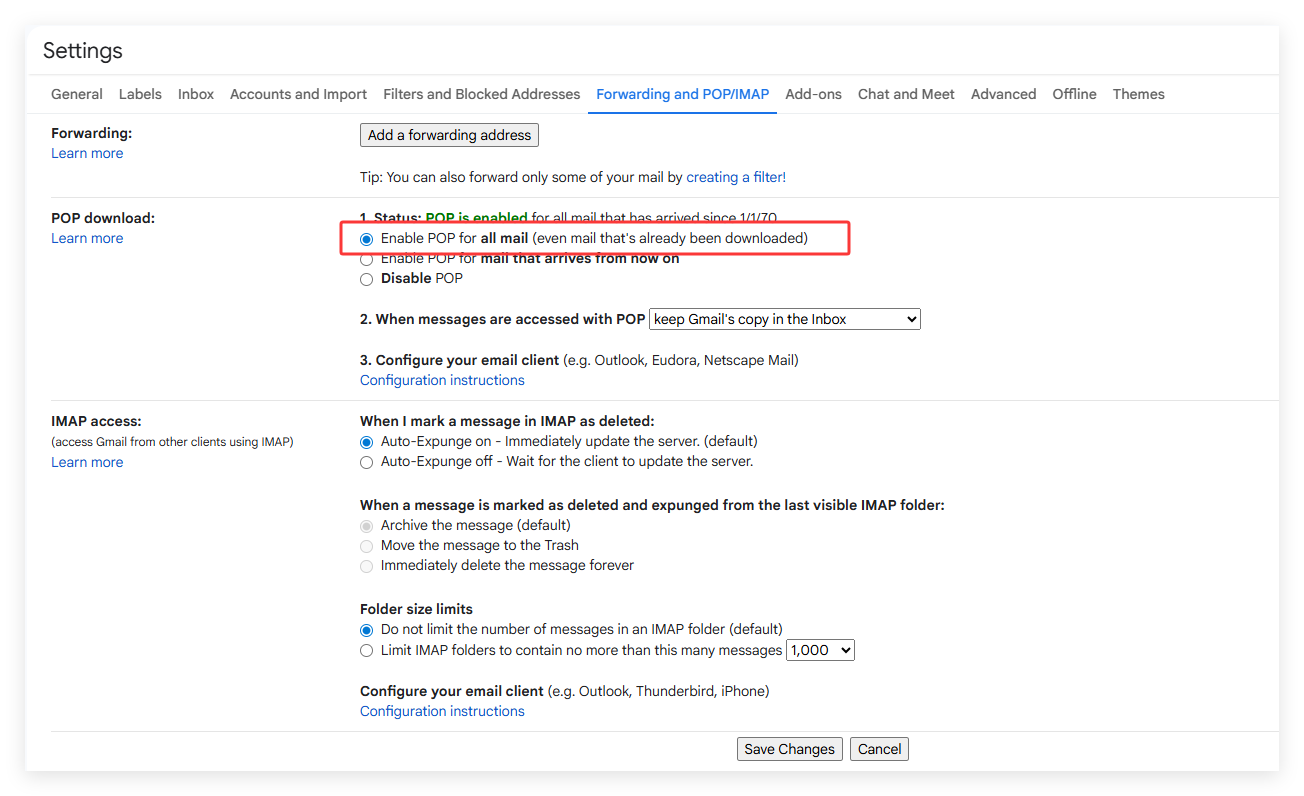
1. Please login your Gmail and go to All Settings --> Forwarding and POP/IMAP --> Enable POP --> Save Changes.
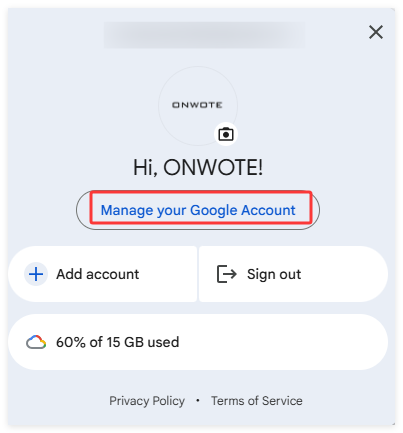
2. Click Google Account on top right corner, choose Manage your Google account.
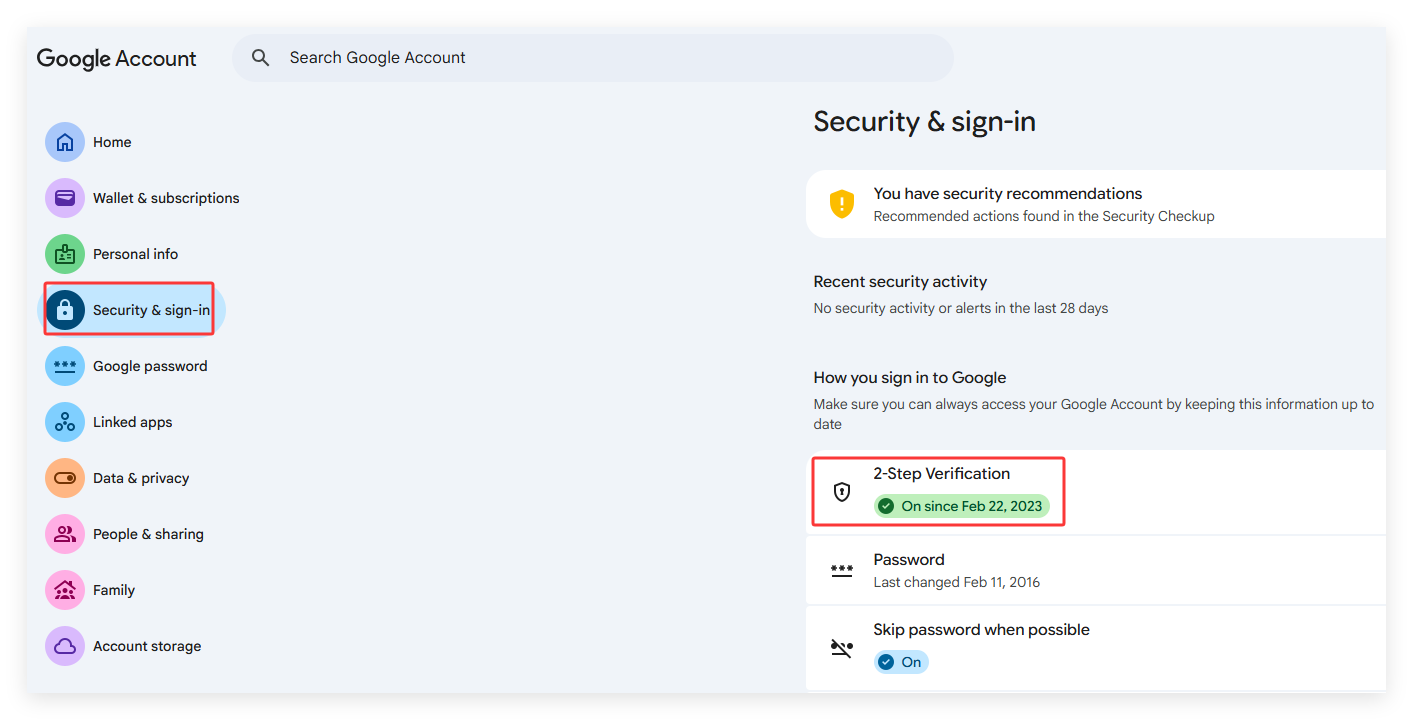
3. Click Security & Sign-in on left side. Click on 2-Step Verification and follow it to turn on 2-step Verification. (If you’ve enabled 2-step Verification jump this step.)
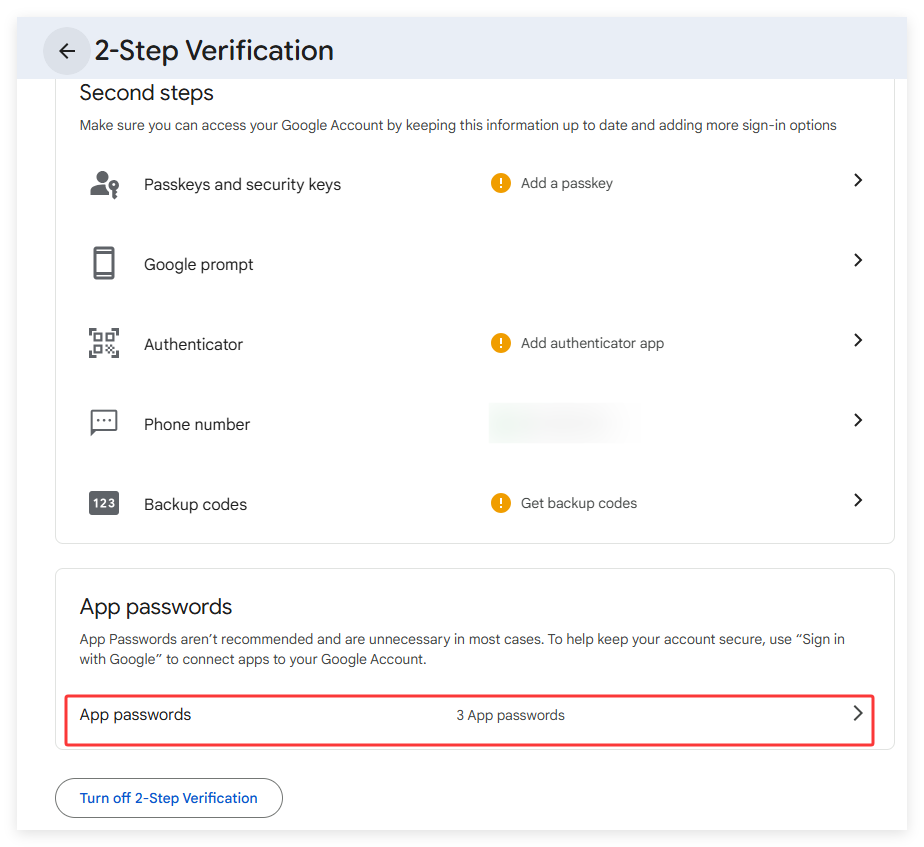
4. Go back to google account security settings, click on 2 Step Verification, click on App passwords. If you cannot find App Password, please go to this page: https://myaccount.google.com/apppasswords
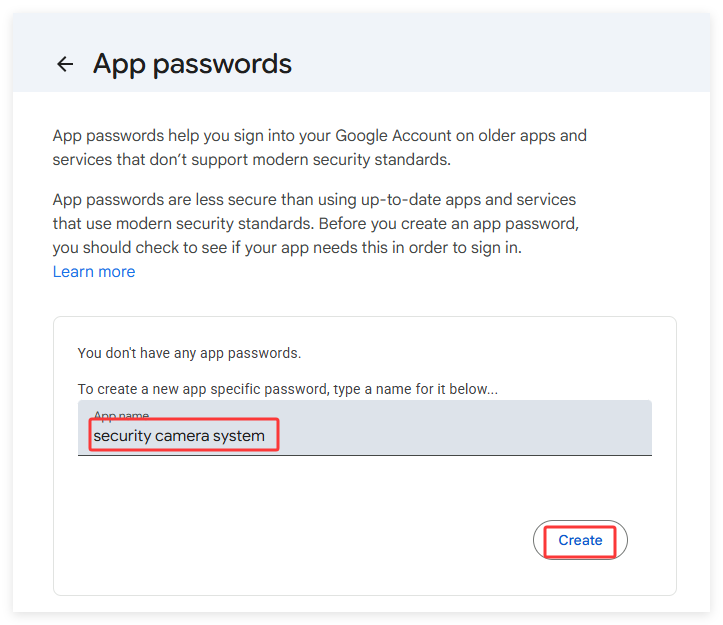
5. Enter a app name, then click Create to get a APP password.
NVR Settings:
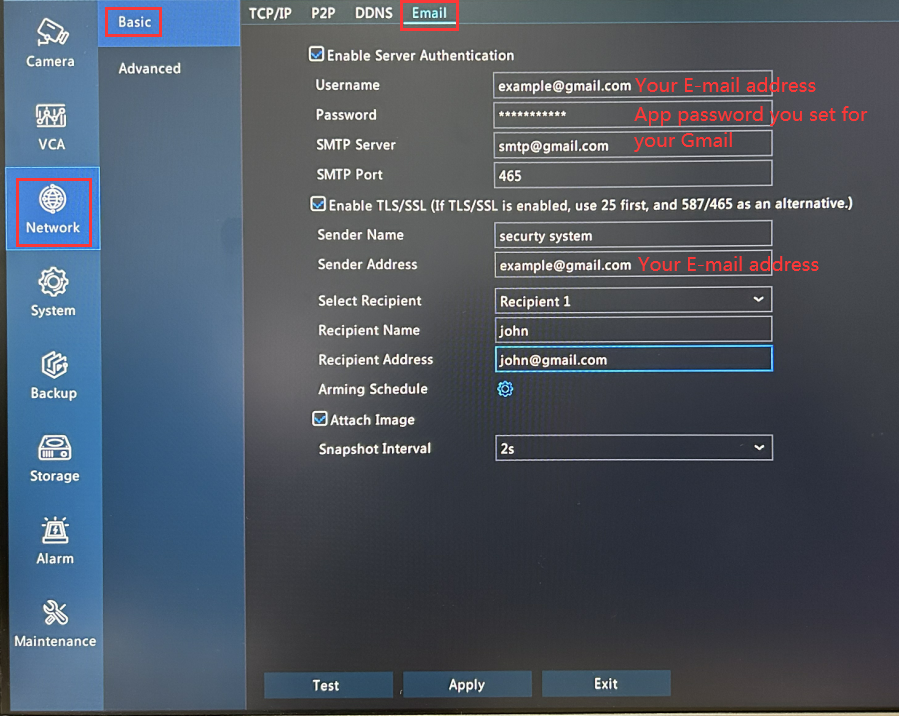
(The information on the picture above is just an example)
 on the right side of Trigger Actions.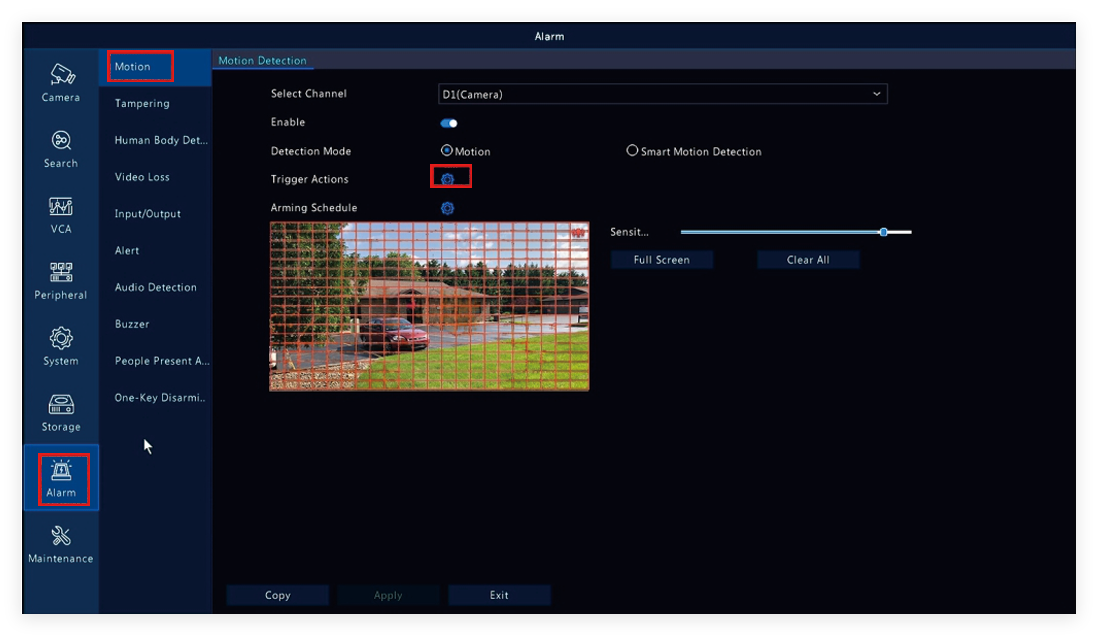
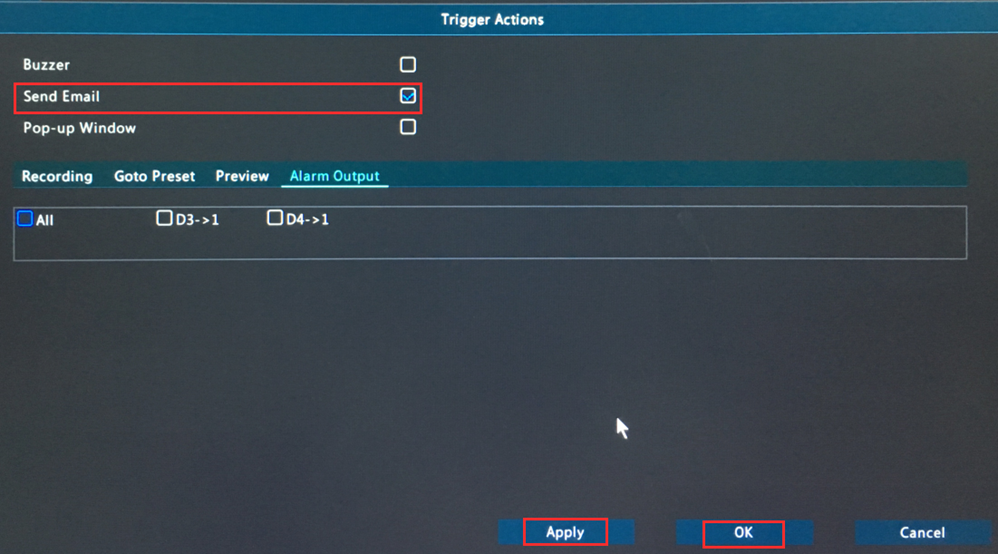
Tips: You just enabled Send Email for the selected camera, please select other cameras and do the same steps to enable Send Email for them.